
How to play Cá Viên Chiên with friends
Cá Viên Chiên has multiplayer: up to 4 friends run one fish ball stall together, right in the browser. This chapter walks through creating a room, inviting friends with a link or room code, picking roles, trading through a day together and sharing the tips at closing time.
Last updated:
How playing Cá Viên Chiên with friends works
Play with friends is the multiplayer mode: you and up to 3 friends stand at one stall at the same time, on the same trading day. Everyone sees the same customer stools, the same wok and the same 16:00–22:00 clock.
No account and no download — you only type a display name. Android phones, iPhones, tablets and computers can all join the same room, because the game runs in the browser.
The “Play with friends” button is on the title screen, next to “Today’s challenge”.
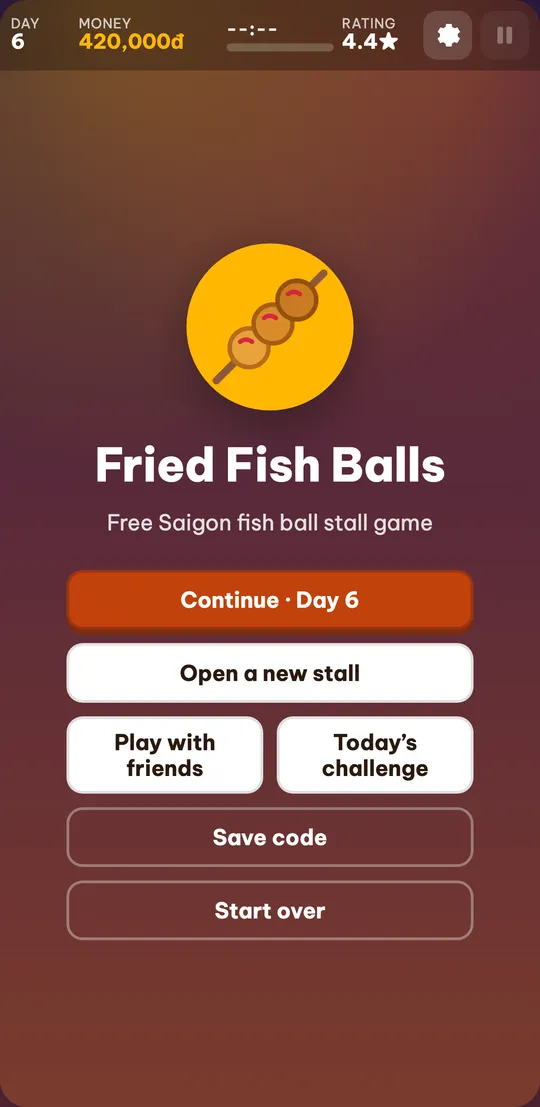
How to create a room
Whoever creates the room is the owner. The room runs on the owner’s stall: its money, stock, unlocked dishes, upgrades and story milestones.
- Click “Play with friends”. On the title screen, click “Play with friends” to open the room page.
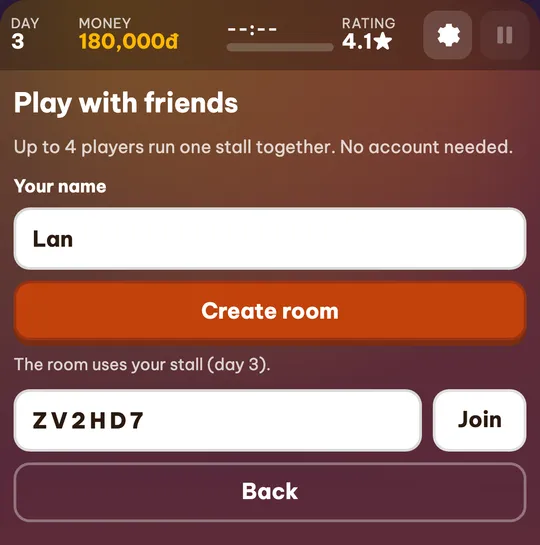
- Type your name. Up to 12 characters, shown on your player card. The game remembers it for next time.
- Click “Create room”. The game makes a 6-character room code, such as 5R3GSE, and takes you to the waiting room.
- Pick your role. Choose Fry, Bag, Drinks or Serve. Roles only split the work; anyone can do anything.
- Invite friends. Click “Invite” to send the room link (see the next section).
- Click “Start”. When everyone is in, the owner clicks “Start” and the whole room moves to the morning.
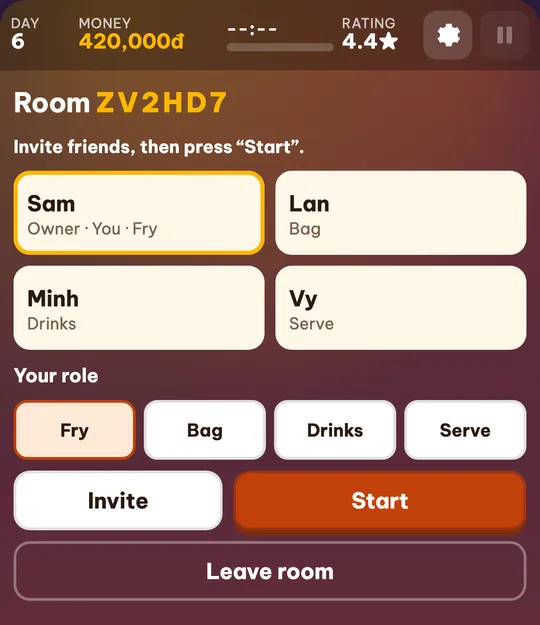
Invite friends to Cá Viên Chiên with a link or room code
Click “Invite”: on a phone the share sheet opens so you can send the link through Zalo, Messenger or a text; on a computer the link is copied for you to paste into a chat. It looks like cavienchien.net/en/game/?room=CODE.
Friends who open the link land on the room page with the room code already filled in — they type a name and click “Join”. If a link is awkward, read out the 6-character Cá Viên Chiên room code for them to type in the “Room code” box; upper or lower case both work.
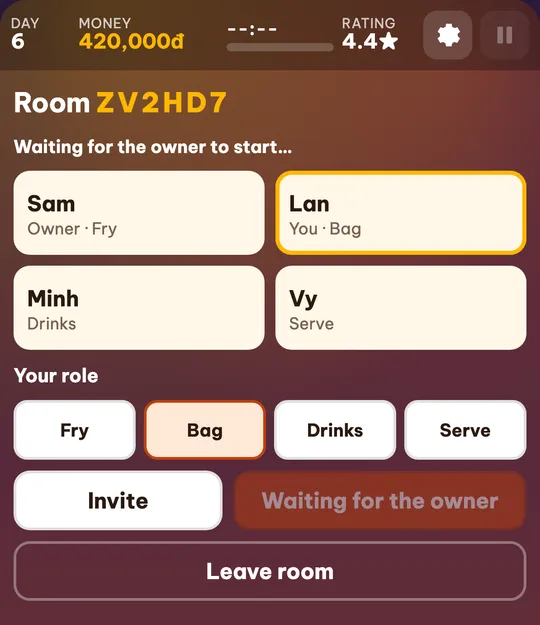
In the waiting room everyone sees four cards: each name, who the owner is, which card is “You” and the role picked. Empty cards say “Free spot”. Only the owner can click “Start”; everyone else sees “Waiting for the owner to start…”.
The morning: the owner shops, everyone watches
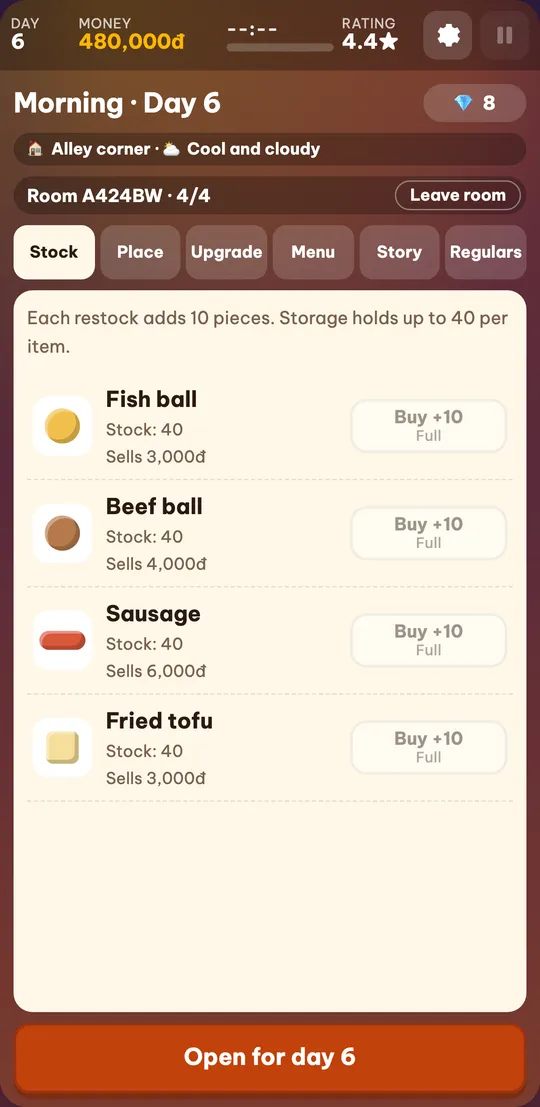
After “Start”, the whole room moves to the morning screen. The owner restocks, picks the place, upgrades and unlocks dishes just like in solo play — every change shows up on everyone’s screen right away.
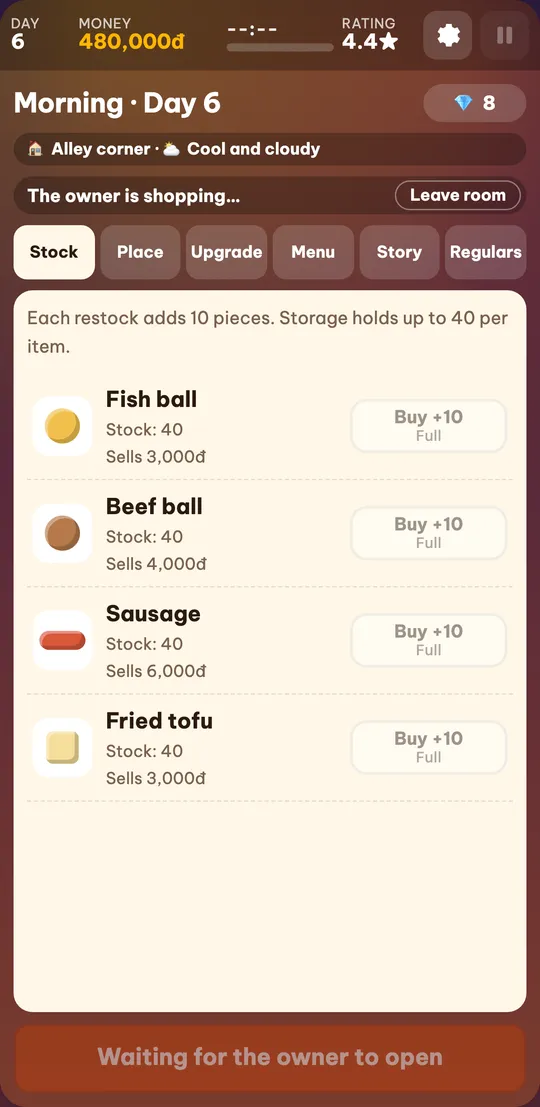
Guests see the same shop without the buy buttons, with the line “The owner is shopping…”. They can still browse the Menu, Story and Regulars tabs. The open button reads “Waiting for the owner to open”.
Tip: more players bring more customers (about 45% more for each extra player in the room when the day opens), so the owner should stock up more than for a solo day.
Running the stall together
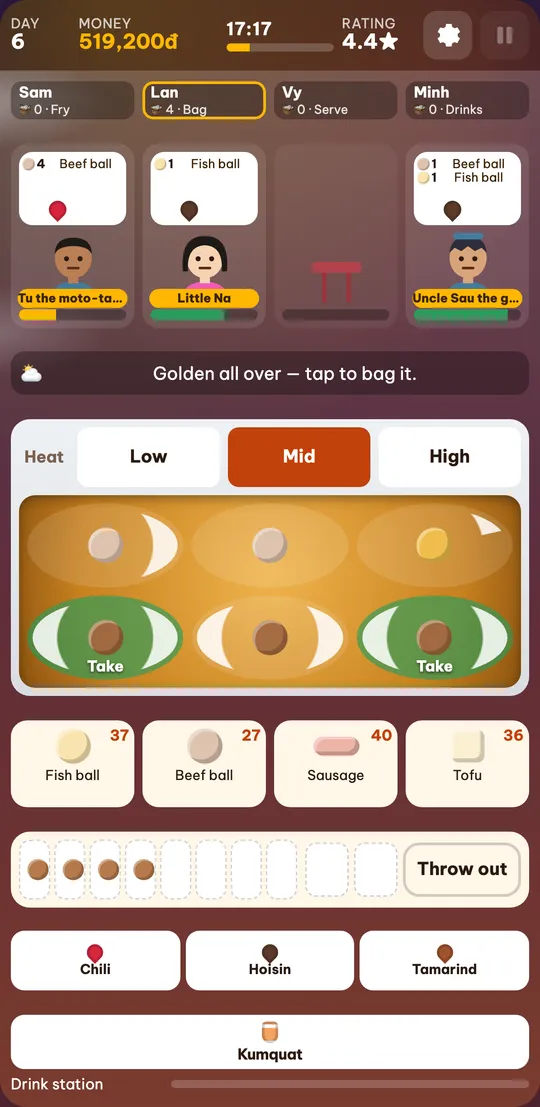
When the owner opens the stall, everyone switches to the trading screen together. The wok, the ingredient tray, the heat and the drink station are shared: anyone can drop pieces in, flip them, set the heat and make drinks.
Each player has their own bag. Pieces you take out, the sauce you pick and the drinks you make go into your own bag; tap a customer to hand them your bag.
The row of names at the top of the trading screen always has four cards: each player’s name, how many pieces are in their bag (🧺) and their role. A player who lost connection shows “offline”; an empty card shows “Free spot”.
Closing time: the owner keeps the stall, guests get tips
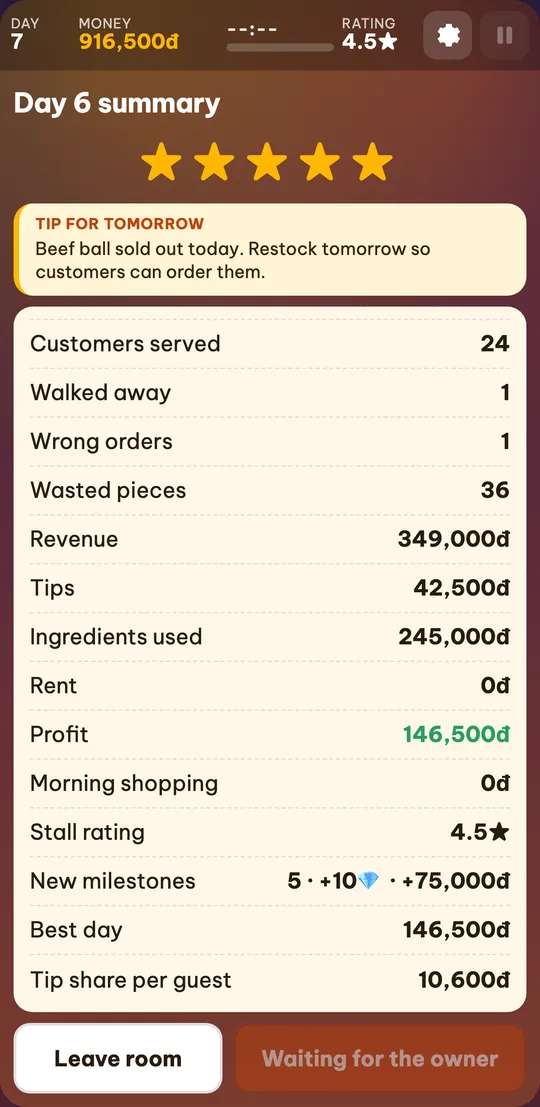
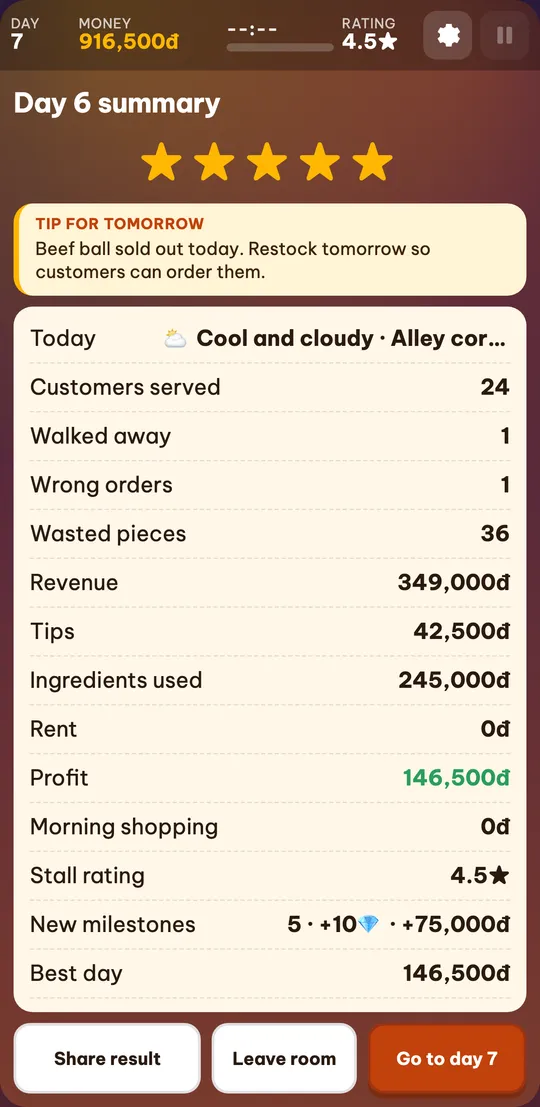
At closing time the whole room sees the same summary: customers served, revenue, tips, profit or loss. Sales and progress are saved to the owner’s stall like any other trading day.
Each guest gets an equal share of the tips: the day’s tips divided by the number of players still in the room at closing, added straight to their own stall. The line “Tip share per guest” at the bottom of the summary shows the amount. Nothing else in a guest’s progress changes.
The owner moves the room on to the next day, or clicks “Leave room” to close it. Guests can leave at any time: in the waiting room, the morning, the summary, or mid-day through the gear button, Settings → “Leave room”.
Playing with friends: quick answers
Do I need an account to play with friends?
No. All it takes is a display name and a room code; progress stays in each player’s browser.
How many players fit in a room?
Up to 4, one for each customer stool. A fifth player sees “The room already has 4 players.”
Can phones and computers play together?
Yes. Rooms run in the browser, so Android, iPhone, iPad, Windows and Mac can all join the same room.
How do I invite friends?
Click “Invite” in the waiting room to send the link through Zalo or Messenger, or read out the 6-character room code.